
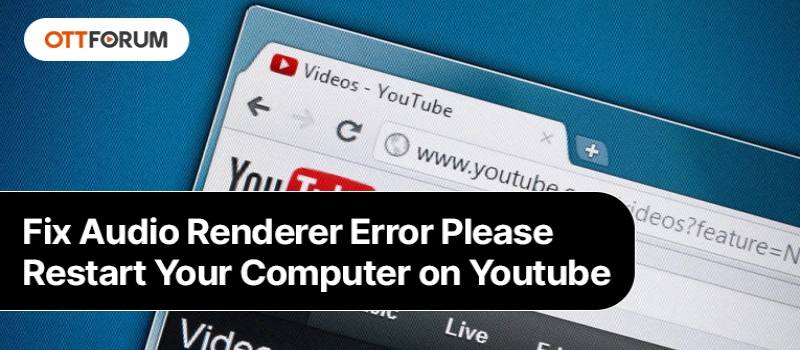
There have been multiple users reporting the Audio renderer error: Fix Please restart your computer error whenever they are trying to play something on Youtube. Since the issue is not specific to any Windows and is often reported with different browsers like Mozilla Firefox, Chrome, Opera, and Edge.
Through thorough research, we could make out that there could be a few major reasons for this error.
A Glitch in the Audio Driver: This is a recurrent bug with some issues in the motherboard models. The temporary ways to resolve the problem include unplugging and plugging the headphones, restarting the computer or you could even disabling the audio driver temporarily.
Disjunct Between Windows Sound Driver and an ASIO Driver: This issue arises in situations where users use both the Windows Sound Driver and ASIO driver, both working of different sound frequencies. In such cases, the best option is to synchronize both frequencies.
Bug in BIOS Version: The issue is localized to Dell computers. Since it's an issue arising from a bug in the update, updating the BIOS version to the latest one can fix this issue completely.
Now that we have listed the possible reasons that led to the Audio renderer error: Fix Please restart your computer problem,
This is the easiest step to follow. It might sound silly but there’s no harm trying. Just unplug your headphones and plug them back in. It works for jack headphones as well as USB-enabled headphones. But this is a temporary resolution for the Audio renderer error: Fix Please restart your computer problem.
As the error in itself states to restart your computer, it could actually work as a temporary solution. The majority of times restarting does fix many issues so the best way is to give it a try. But if the issue still persists, keep reading forward to find a permanent fix.
Running the audio troubleshooter can actually fix the issue once and for all. The built-in audio troubleshooter consists of various repair strategies to fix the computer automatically. If the issue is a common one, then running the troubleshooter will definitely fix it entirely.
To Run the Audio Troubleshooter on Your System, Follow the Steps Below for Youtube audio renderer error. please restart your computer.;
Step 1: Click on the Windows key + R. A pop-up will appear. Type ms-settings: troubleshoot and hit enter.
Step 2: A troubleshooting tab will open up. Scroll down and click on Get up and running. From the options that follow click on Playing Audio. Click on the Run the Troubleshooter option.
Step 3: It will take some time for the investigation to complete. Following the completion of the investigation, click on the device with which you are encountering the Audio renderer error: Fix Please restart your computer problem.
Step 4: If there’s an issue that requires repairing, you can follow the on-screen prompts as guided by the troubleshooter.
Step 5: Restart your computer to check if the issue is resolved.
You could use any of the above three methods to resolve the issue.

How to Fix YouTube Disconnects My Internet?
~ May 23, 2026
How to Fix YouTube TV Playback Errors in No Time?
~ May 23, 2026
How to Fix YouTube TV Spinning Circle Problem?
~ May 23, 2026
How to Fix the YouTube Picture-in-Picture Not Working Issue?
~ May 23, 2026
How to Fix YouTube TV Keeps Freezing Buffering or Crashing?
~ May 23, 2026
How to Watch YouTube TV Away from Home?
~ May 23, 2026
How Many Devices Can Stream at the Same Time on Youtube TV?
~ May 23, 2026
How Much Is NFL RedZone on YouTube TV?
~ May 23, 2026
Top Searches in Youtube Tv
How to Fix Video Playback Error Code 224003?
May 23, 2026How to Stop or Disable Video Paused Continue Watching on YouTube?
May 23, 2026YouTube Keeps Resetting to Light Mode Fix it
May 23, 2026How to Loop YouTube Videos in Google Chrome?
May 23, 2026Why YouTube TV is not Working on Fire TV?
May 23, 2026How to Fix the YouTube Picture-in-Picture Not Working Issue?
May 23, 2026How Many Devices Can Stream at the Same Time on Youtube TV?
May 23, 2026How To Delete A YouTube Account?
May 23, 2026How to Fix YouTube Disconnects My Internet?
May 23, 2026How to Watch YouTube TV Away from Home?
May 23, 2026