
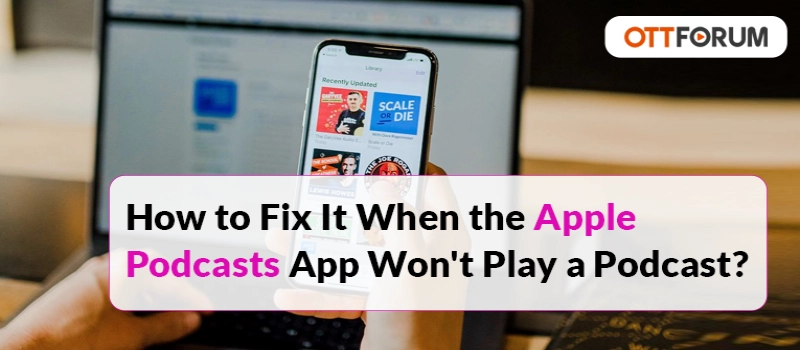
Apple podcasts app won't play issue arrives at the time of syncing with other devices or downloading the podcasts. The app should sync and download podcasts automatically. However, this can get interrupted due to various reasons. This may happen because of problems with the server or a spotty internet connection.
The app may also fail because of a configuration issue or a software bug in the podcasts app. This problem is not very common and is hard to troubleshoot as well. Below, we have mentioned some solutions that can help you get rid of this error.
The Apple podcasts app is available for Mac, iPad, and iPhone. Below, we have stated the steps that are applicable to all. However, the specifics of every solution may differ.
You need to first check the volume on your iOS device. You need to make sure that the volume is loud and not muted. If this is the cause of the problem, then it can get resolved within seconds.
While you are multitasking on your iPhone or iPad, you need to swipe up and close the app. If you are a Mac user, then you can easily close this app by clicking on its icon on the dock and then selecting Quit. Now, try to play the podcast one more time after you reopen the app.
You need to first make sure that your audio output is selected. A Mac, iPad or iPhone can send audio to an external output. You can easily select the audio output on your iPad or iPhone by tapping on the Apple AirPlay icon while playing the podcast.
Now, you will see available audio sources on your screen with a checkbox next to the one that you are using presently. If you are a Mac user, then you can change the audio output by clicking on the speaker icon given at the upper-right-hand corner.
Another method that can help you fix this problem is to delete the podcast and then redownload it. A file may get corrupted while downloading that making it unplayable. In such a case, you need to re-download the podcast. This will give you a new copy of the file to try once again.
If you are a Mac user, then you can delete a podcast by going to the downloaded section of your podcast app. Hover the icon on the show's icon to see the menu. After that, click on it and then select Remove Downloads.
You need to first check that your data or Wi-Fi connection is strong enough. Check your internet speed by performing a speed test. A terrible internet connection may not let you play any podcast, which is not downloaded in the Apple podcast library. If your internet speed is slow, then you need to go to a location that has a better connection.
If you find that the low data mode is turned on, then you must turn it off. This mode restricts data usage. This can cause a problem when you try to download or play a podcast.
You must turn off mobile data or Wi-Fi temporarily. Sometimes, a bad data connection can lead to various problems while playing podcasts that are downloaded on your iPhone.
Turning off your internet can help you fix this problem. You can also turn on the data if your podcast starts playing again.
You need to first uninstall the podcast app and then reinstall it. You can easily uninstall this app on your iPad and iPhone. After uninstalling the app, reinstall it on your app store.
One of the ways to fix the Apple Podcasts App Won't Play a Podcast is to restart your iOS device. This can resolve a connection issue or a persistent bug causing the problem.

How to Get Netflix on Spectrum the Easiest Way?
~ May 23, 2026
How to Connect Max to Your TV With Google Chromecast?
~ May 23, 2026
How to Troubleshoot Streaming Issues on Android?
~ May 23, 2026
How to Program Optimum Remote?
~ May 23, 2026
How to Fix Snapchat Export Not Working?
~ May 23, 2026
What Channel is CW on DIRECTV?
~ May 23, 2026
What you Need to Know about Rabbit TV?
~ May 23, 2026
Top Searches in Online Streaming
How To Search On Pluto TV Easy Guide
May 23, 202611 Free Movie Streaming Sites With No Sign Up Requirements
May 23, 2026How to Recover Reset your Forgotten TikTok Account Password?
May 23, 2026How to Stop Apps from Running in the Background in Android?
May 23, 2026Why Does My TV Sound Keep Cutting Out?
May 23, 2026How To Fix Amazon Prime Video Not Working On Roku?
May 23, 2026What Channel is FS1 on DirecTV?
Oct 15, 2026What Channel is CW on DIRECTV?
May 23, 2026How to Buy or Rent Redbox Movies to Stream at Home?
May 23, 2026How to Fix Snapchat Export Not Working?
May 23, 2026